

Organizations, teams and projects
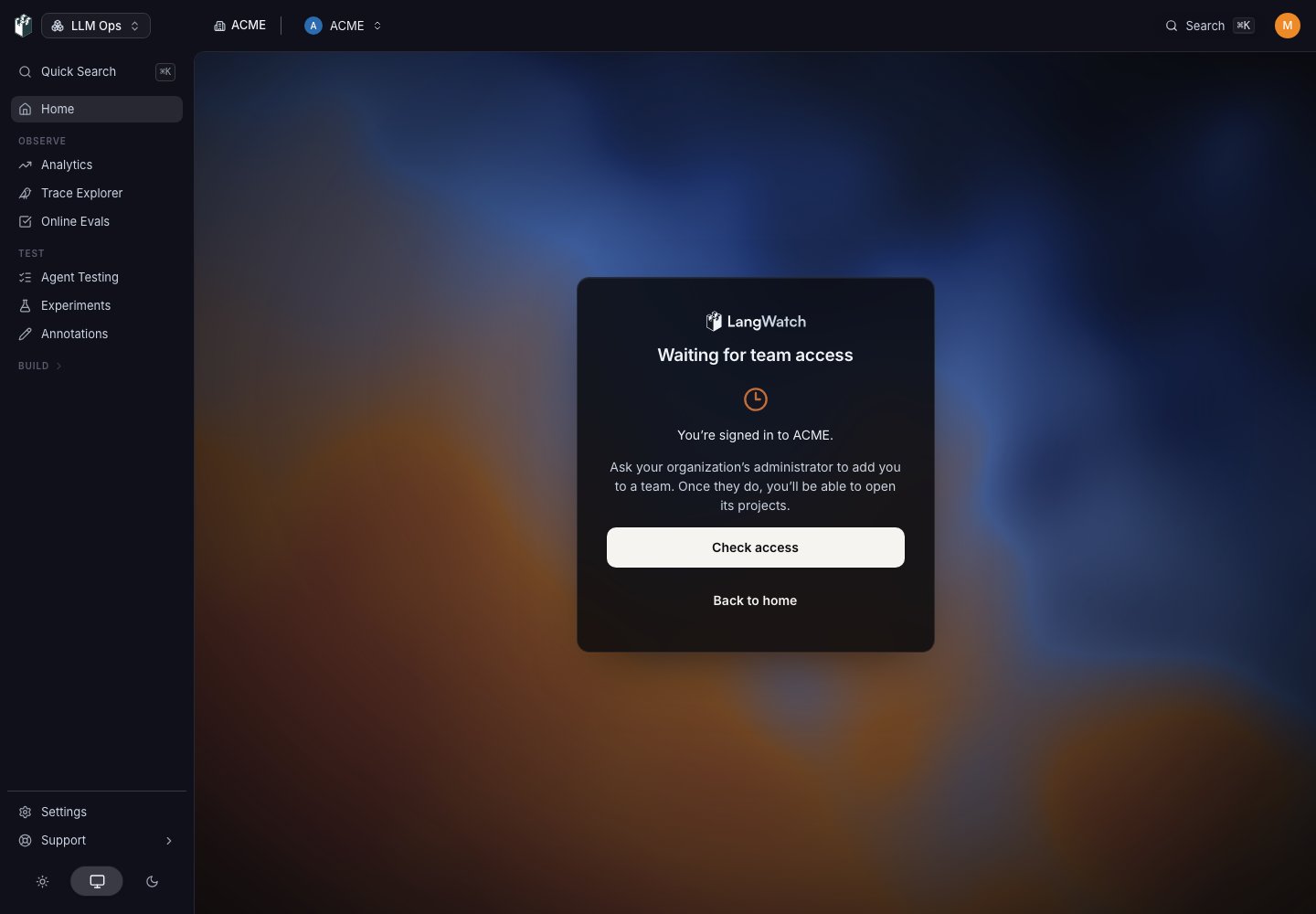
An organization is the top level: it holds the members, the seats, the billing plan and the organization-wide settings. A team groups projects and the people who work on them. A project is where your traces, evaluations, prompts, datasets and API keys live. Every member has one organization role. Below the organization, access comes from role bindings: a person on a team holds that role on every project in the team, and a project-level binding adds access on one project without removing the team role. A binding at the organization scope, which is what an organization Admin holds, applies to every team and project. People joining through SSO can belong to the organization before they have team access. They see a waiting page until an administrator assigns access or the identity provider syncs a mapped group. Personal workspaces contain one personal team and project, listed under My Workspace and hidden from the team pickers. An SSO arrival waiting for team access does not receive a personal workspace automatically.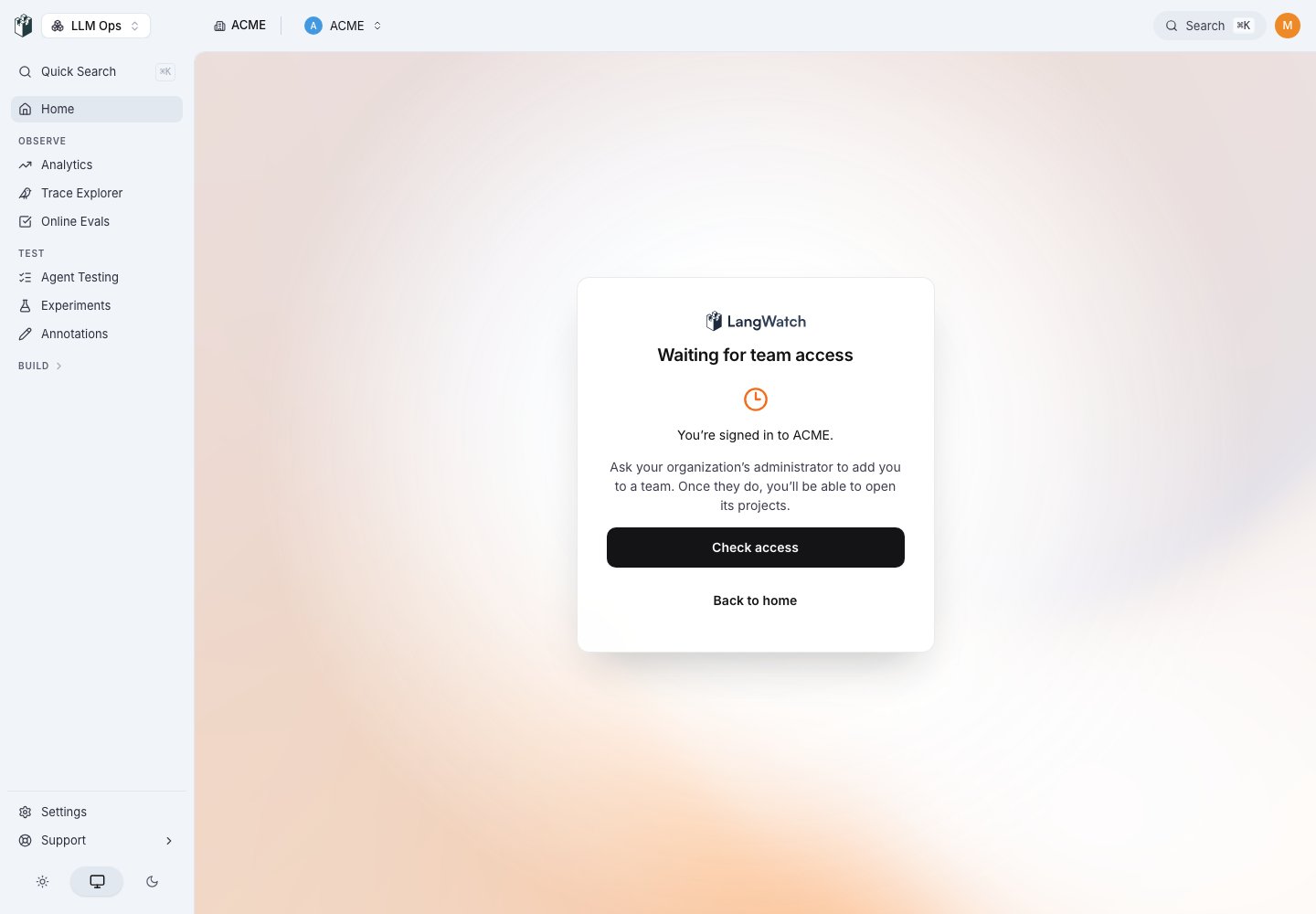
Members
organization:manage.
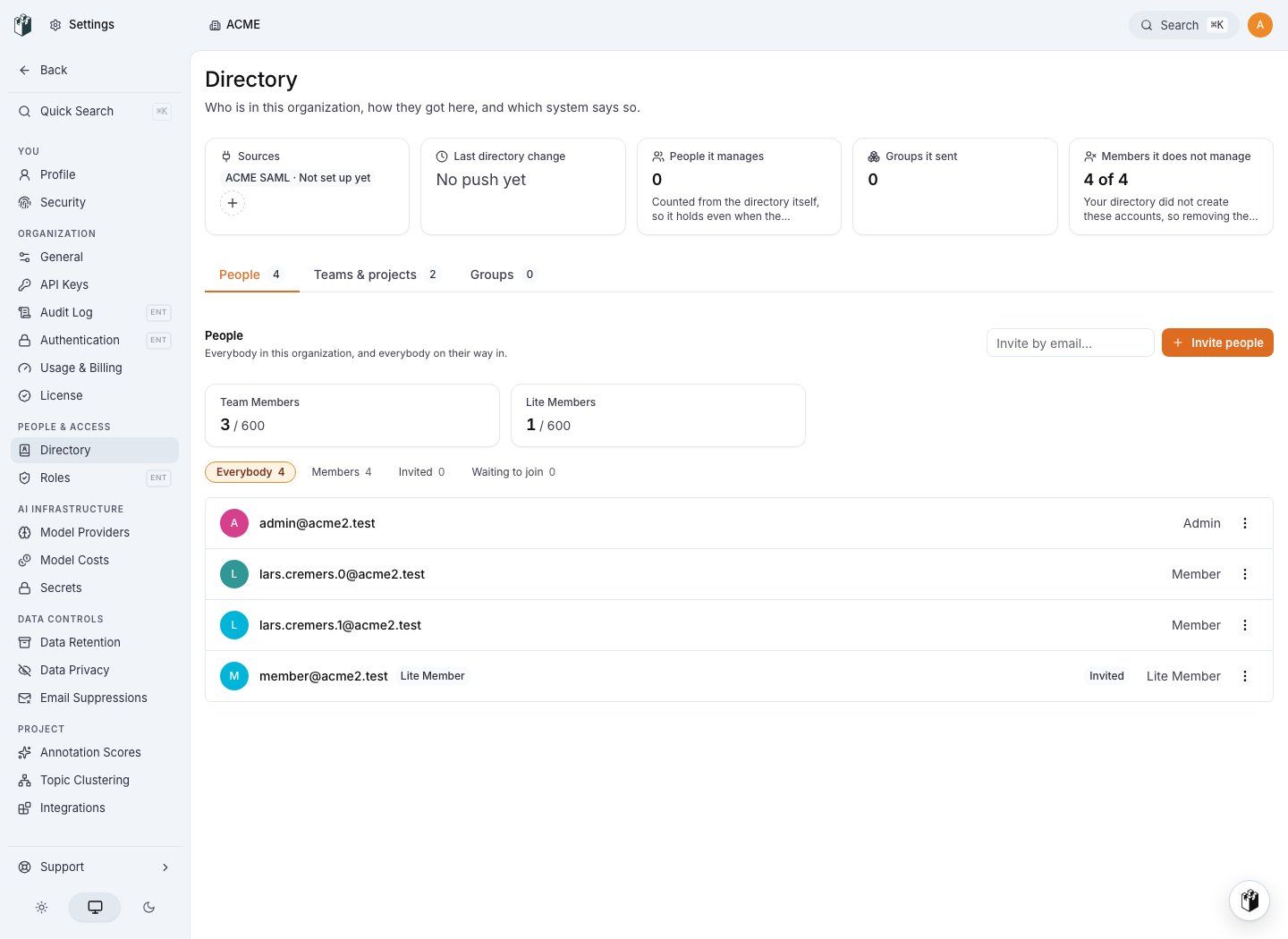
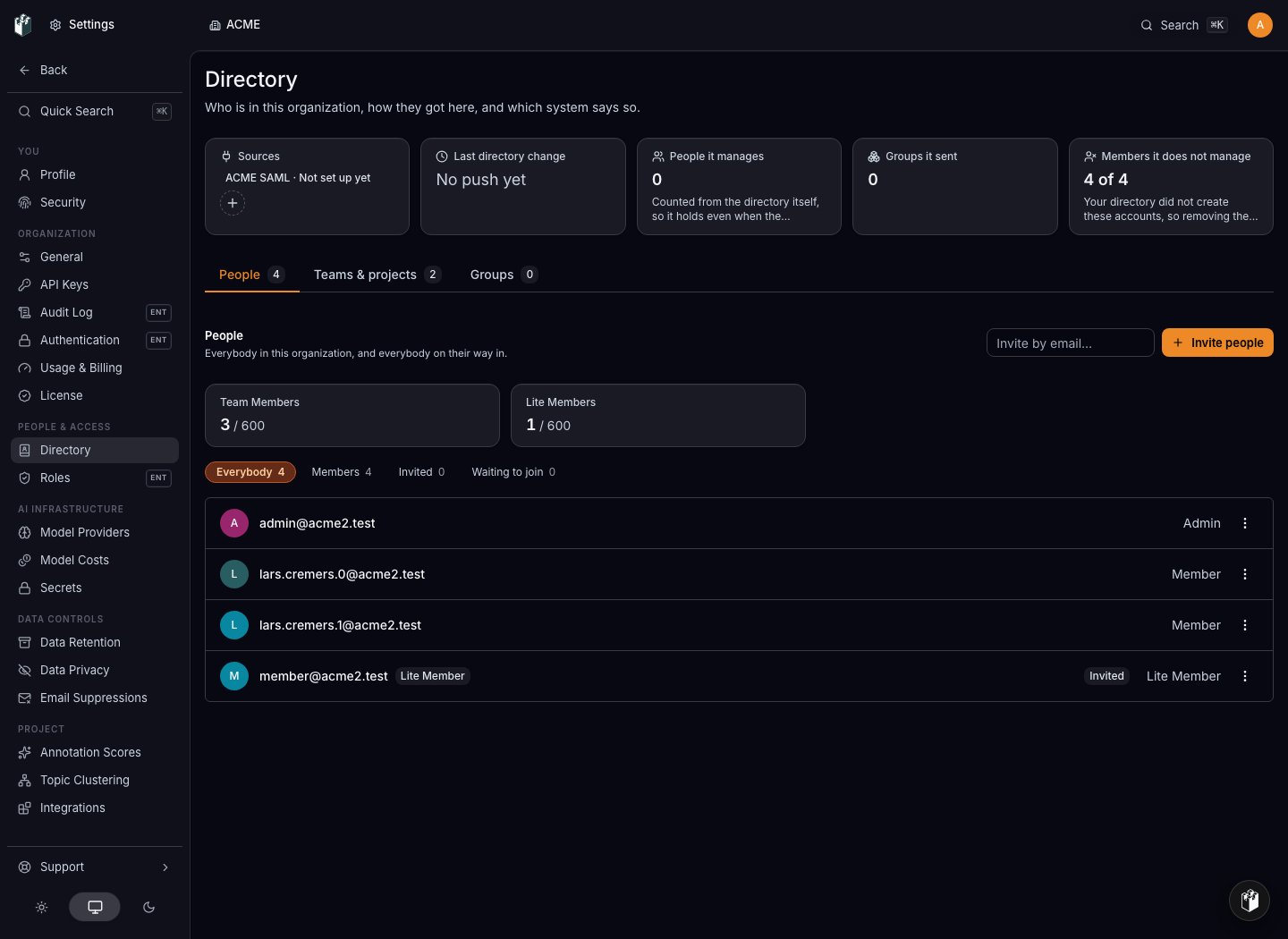
Each row shows the name, the email, a Lite Member badge when the member is on a Lite seat, a Disabled badge when access is switched off, and the Access column: one badge per role binding, as role on scope, with via <group> when the binding comes from a group.
Click a row to open the member dialog:
- Organization role: Admin, Member or Lite Member. You cannot change your own role.
- Access: the team and project bindings. Add a row with a role, a scope type (organization, team or project) and the team or project. Remove a row to revoke it.
- Group access: the bindings inherited from groups, read only.
Invite people
Click Invite people. Enter one or more email addresses separated by commas, spaces or semicolons. Tick Lite Member to invite the whole batch on Lite seats. Under Team Assignments, add each team the person joins with the role on that team: Admin, Member, Viewer or a custom role. A Lite Member can only be assigned as Viewer. The drawer warns when a Lite Member invite has no team, because a Lite Member with no team sees no project. Click Send invites. When the deployment has no email provider, the button reads Create invites and you copy the invite link from the row menu instead. An invite link has the formhttps://app.langwatch.ai/invite/accept?inviteCode=... and works for 14 days. Resend invitation issues a new 14-day link, and Revoke cancels it.
Pending invites are listed under the members table with their status: Invited, Expired, Revoked, Accepted or Awaiting payment. An invite for a full seat over the plan limit opens the seat purchase dialog or the upgrade dialog before it is sent.
Let colleagues join by domain
Open Settings > Authentication, then find Organization policies. The Joining your organization card controls people who do not use your identity provider:
The Account lockout and Session limits cards in the same section apply
to password sign-in for the organization. They remain available when you stop
using single sign-on. Changing a policy requires
organization:manage.
Lite Members
A Lite Member is a read-only seat, counted apart from full seats. On a team or a project a Lite Member can read traces, analytics, evaluations, datasets, prompts, workflows, experiments and scenarios, and can create and update annotations. A Lite Member cannot see costs, the LangWatch AI Gateway pages or the audit log, cannot change anything else, and has the same limits over the API and MCP. In the settings pages a Lite Member can only hold the Viewer role.Teams
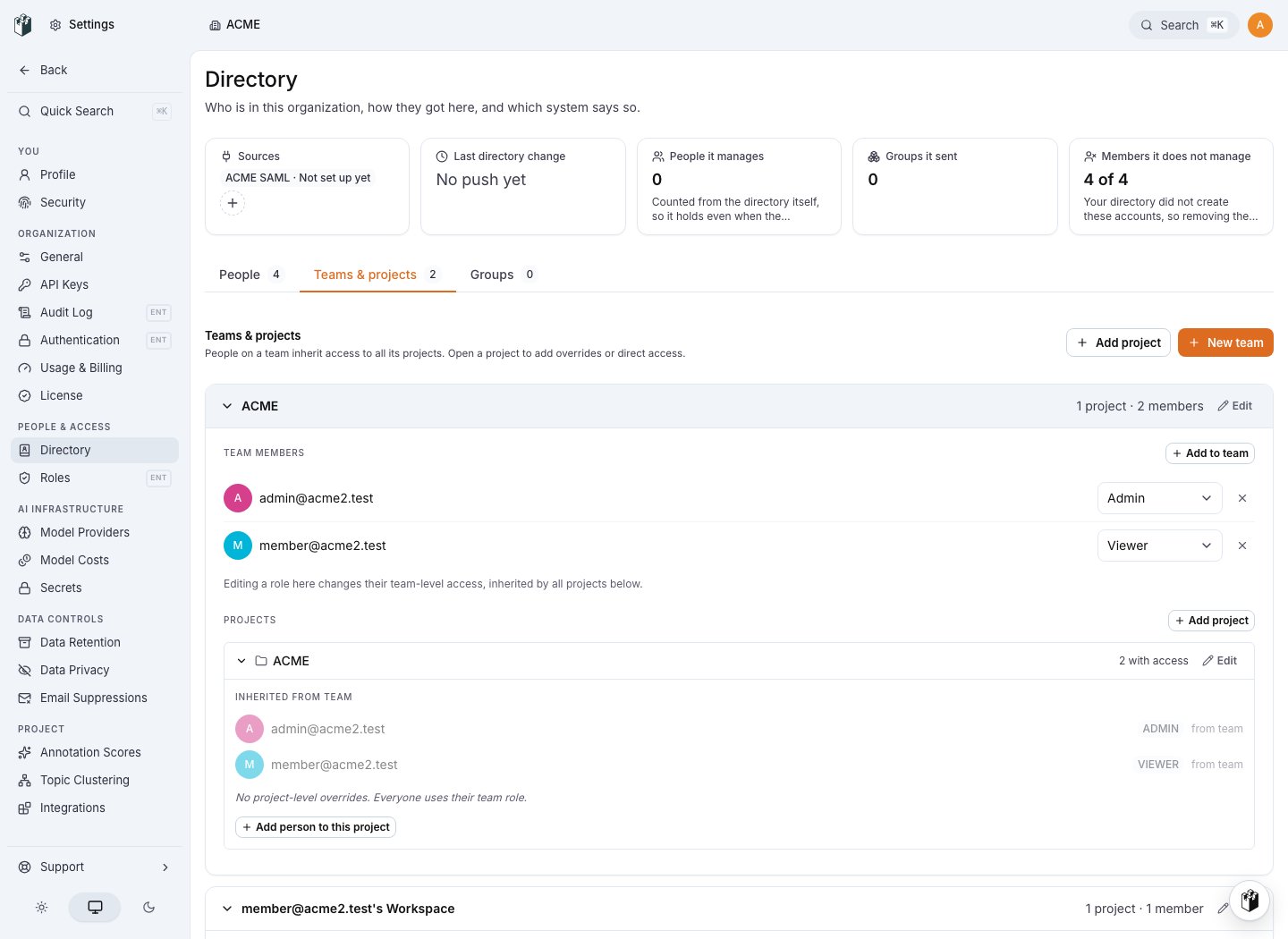
via <group>.
Add to team adds an organization member with a role on this team, and so on every project in it. Under each project, Add person to this project gives a role on that project only. For someone already on the team, the page marks the row override and shows their team role next to it; the project role adds to the team role, it does not take permissions away. Remove the project role to leave only the team role.
Click Edit on a team to open its page: rename it (the slug is read only), edit the members, add or archive projects. Archive this team hides the team and all its projects; contact support to restore it. A team keeps at least one Admin: removing the last one is refused.
Remove access
Deleting a member does not delete the traces, prompts or other work they created.